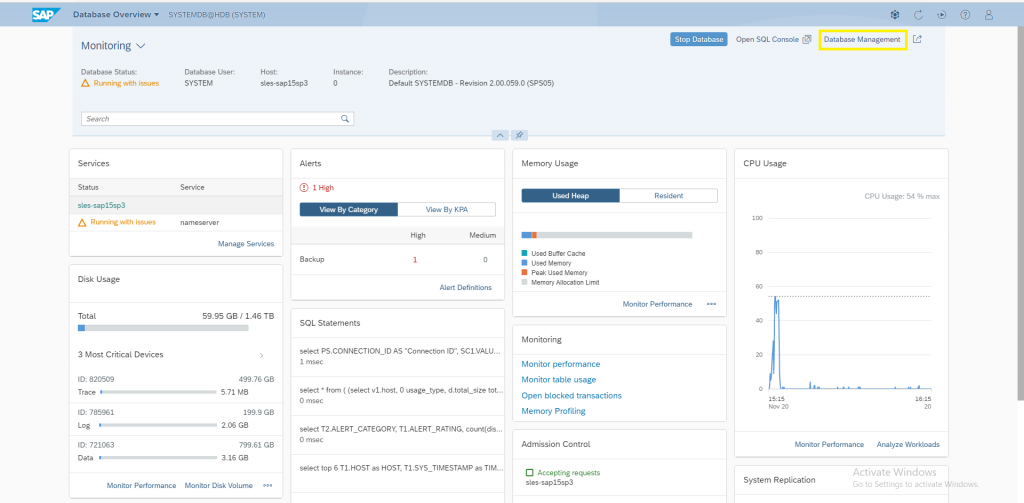
Further to the previous post on SAP HANA Cockpit 2.0 – Installation I will now continue on how to launch SAP HANA Cockpit and Register a resource/system (i.e., HANA System).
At the end of the Installation of the Cockpit, we saw the URLs to access the same as shown below:

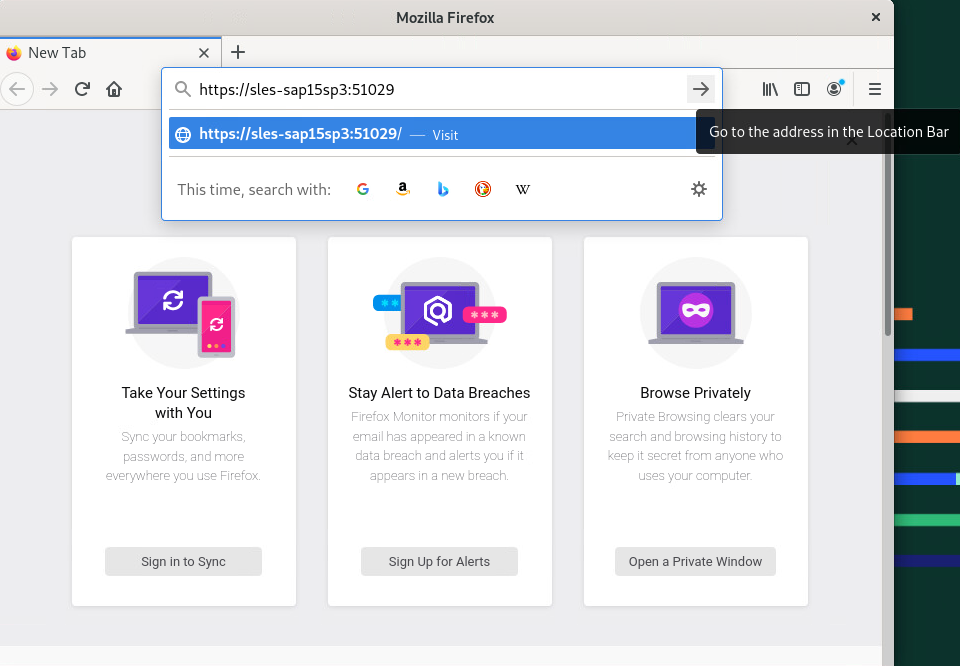
Open Firefox on the same Server and launch Cockpit Manager as shown below:
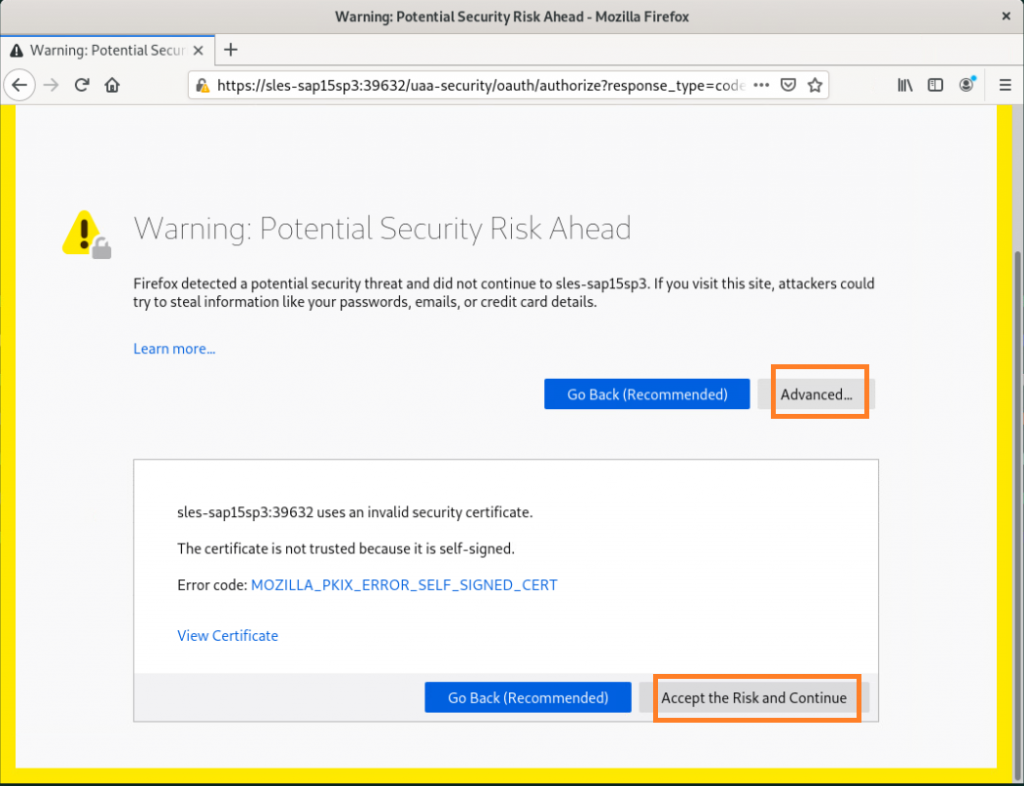
As this is the first time logging in, it gives you security warnings. In the next login, you will directly get Login Page. For now, click on ‘Advanced’ and then click on ‘Accept the Risk and Continue’.

Again click on ‘Advanced’ and then click on ‘Accept the Risk and Continue’.
Login as COCKPIT_ADMIN.

You can access the Cockpit from your PC also, for which you just need to configure your firewall to allow access to that host and port for the Cockpit’s URL(s).
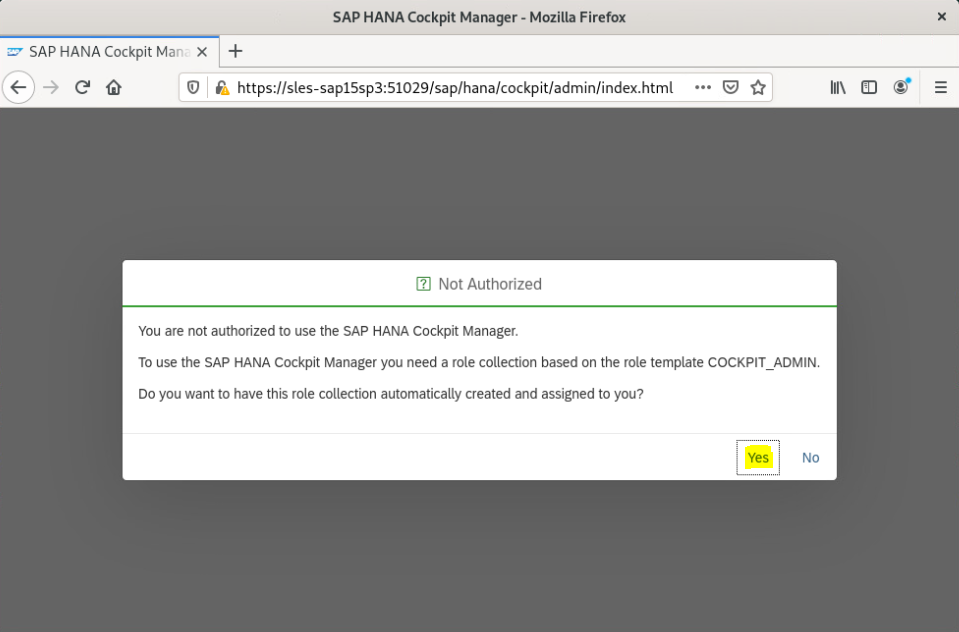
As this is the first time logon on to Cockpit, it will pop up with a message as shown below. Click on ‘Yes’ to continue and you (COCKPIT_ADMIN) will be assigned a required role.
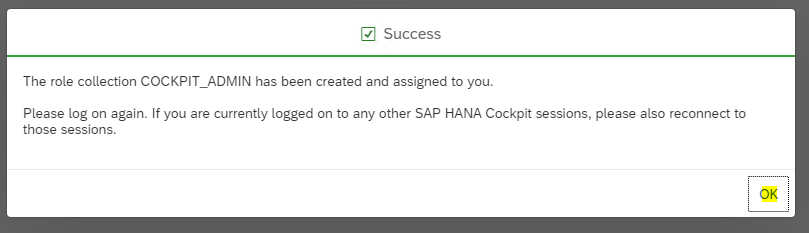
Click on ‘OK’ and this will log out your’s session from the Cockpit.
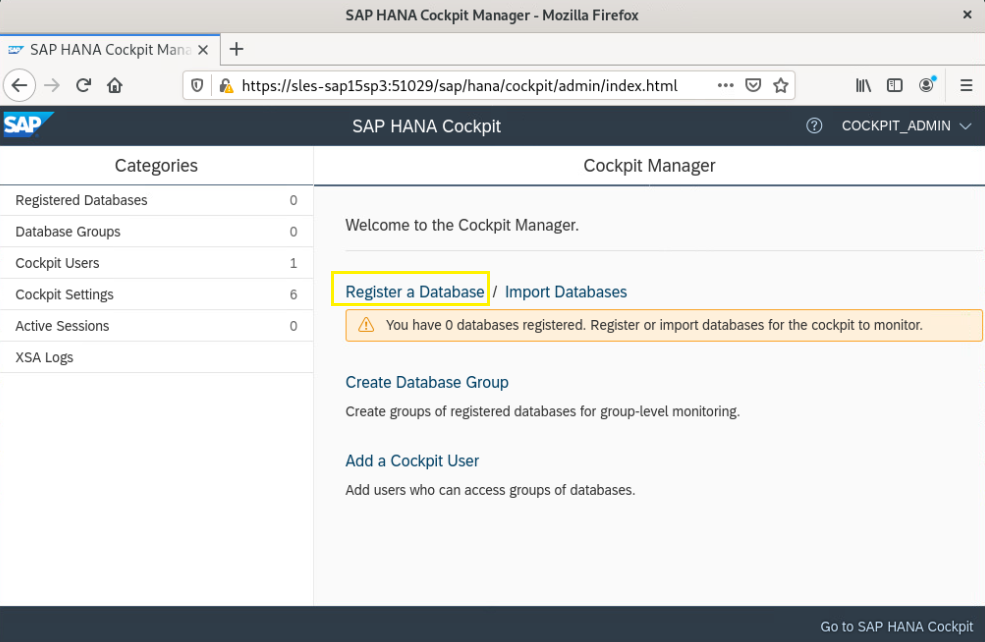
Re-login on Cockpit Manager with COCKPIT_ADMIN credentials and this time you’ll be able to enter into Cockpit Manager as shown below.
Register a Database
Click on Register a Database.
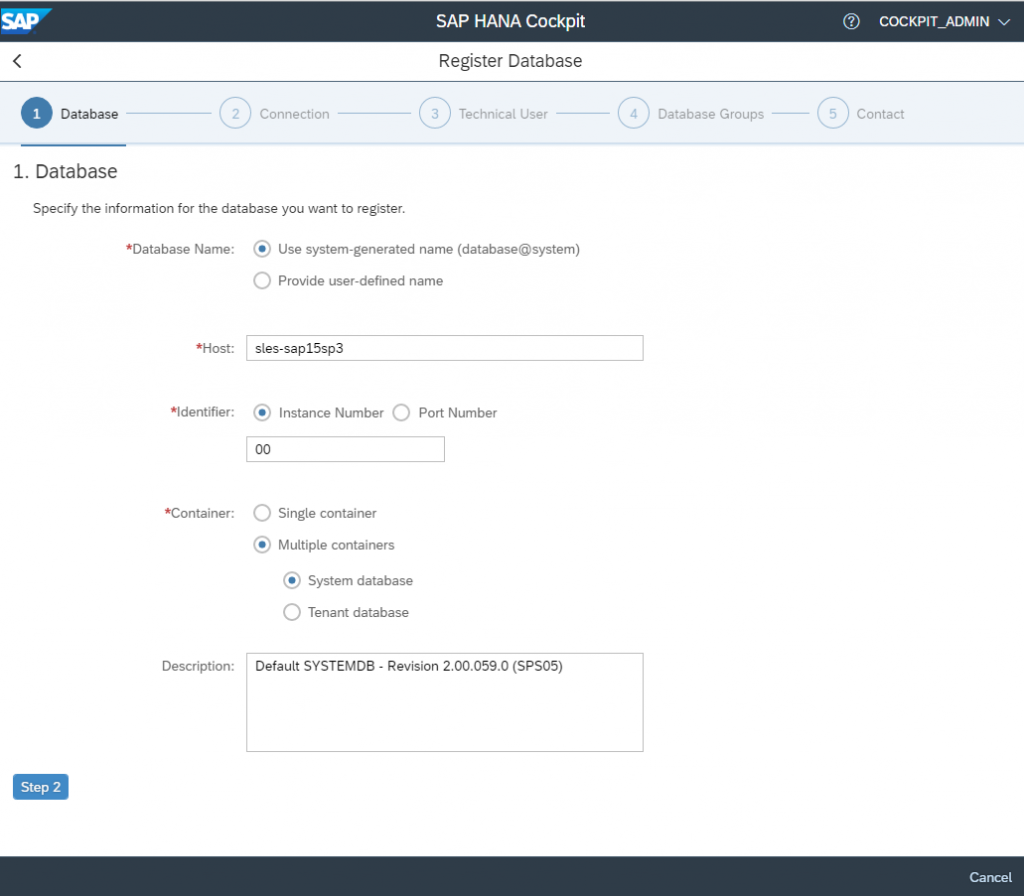
Enter the details of your Database and click on Step-2.
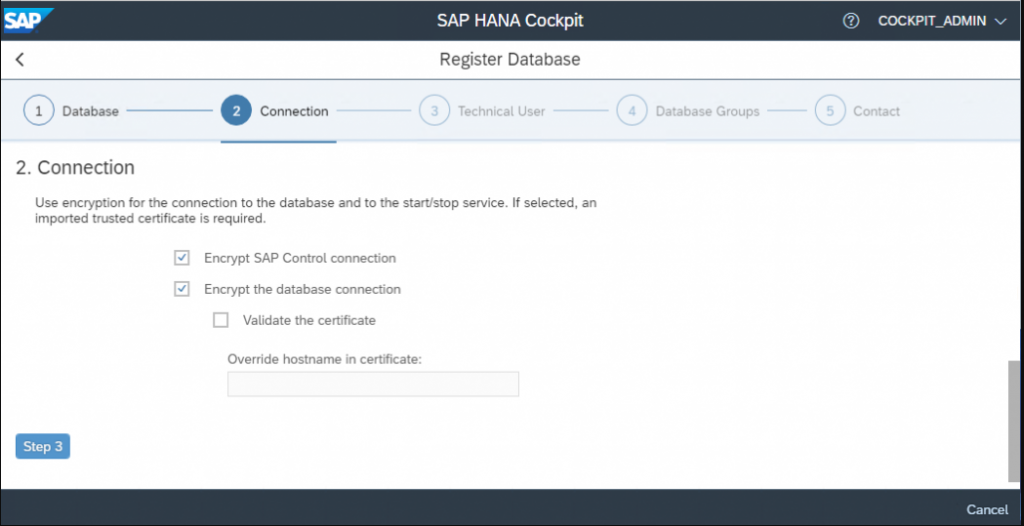
Untick the option ‘validate the certificate’ and click on Step-3.
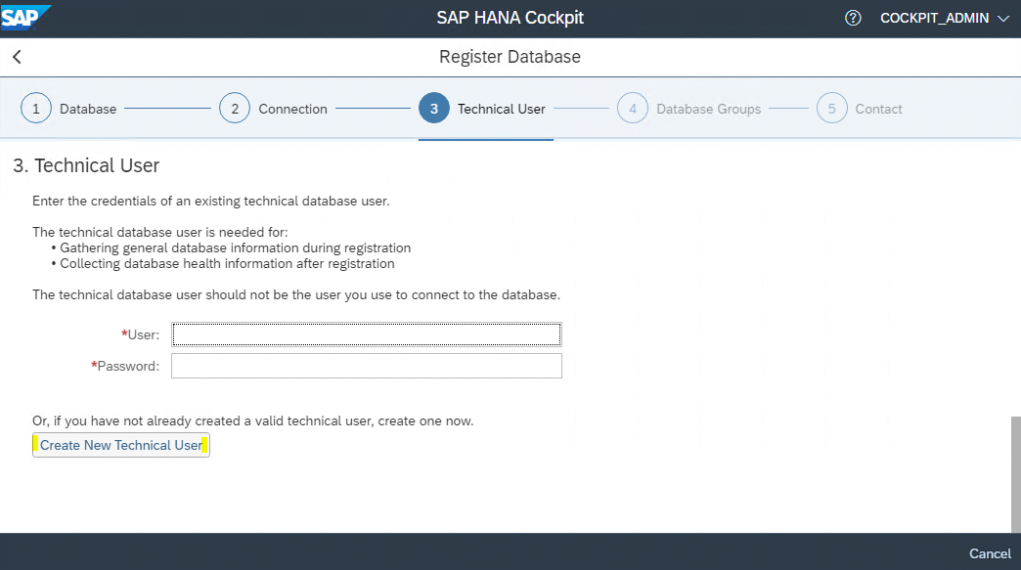
SYSTEM user is not recommended to use. Therefore, click on ‘Create New Technical User’ to create one.
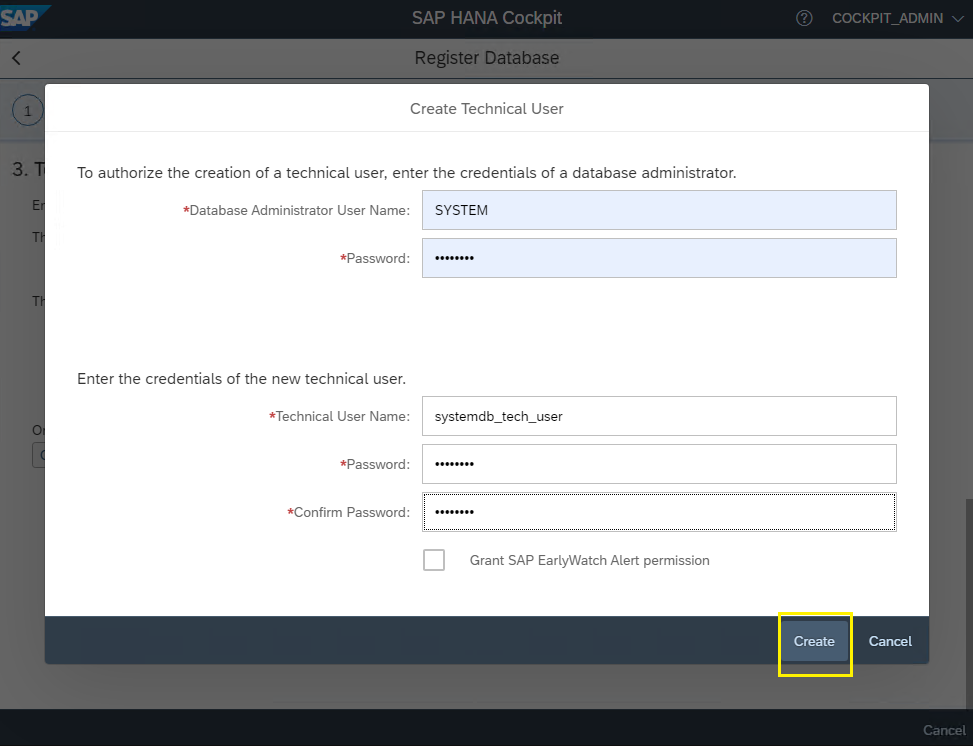
Just to authorize to the creation of a technical user, enter the SYSTEM user’s credentials and enter the technical user name and password then click on Create. An example is shown below:
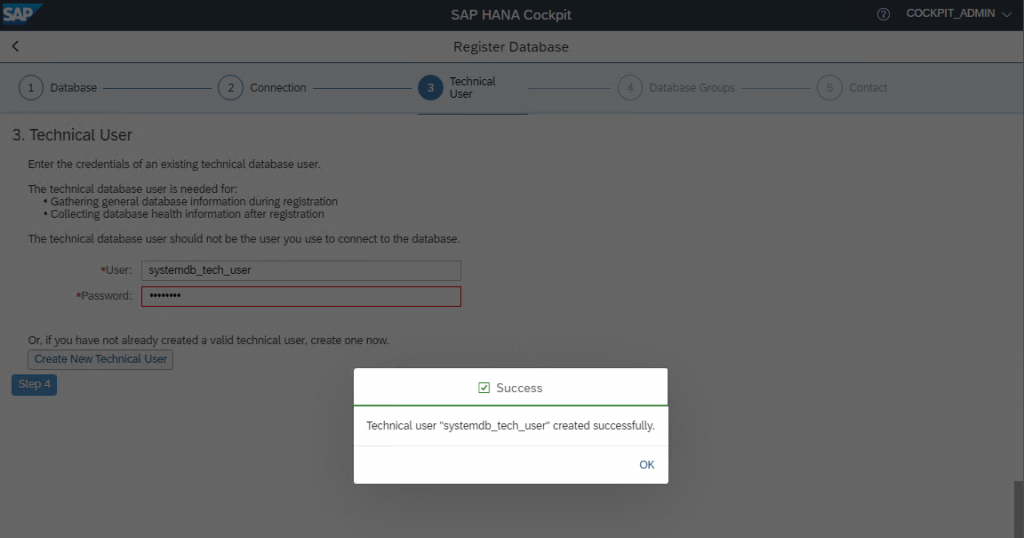
Technical user created successfully message appears, click on OK.
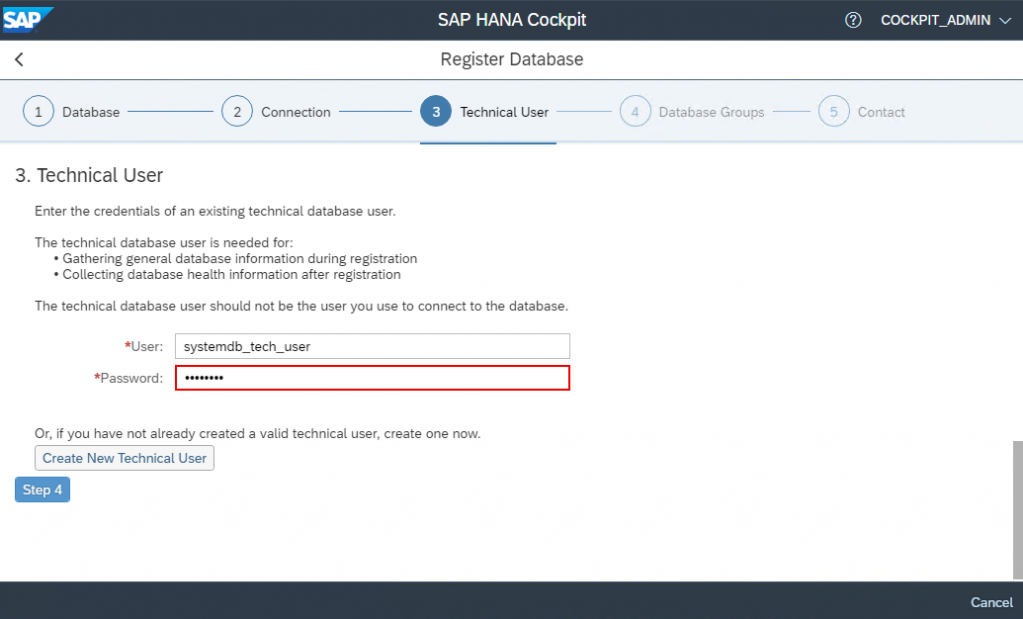
Click on Step-4.
Click on Step-5.
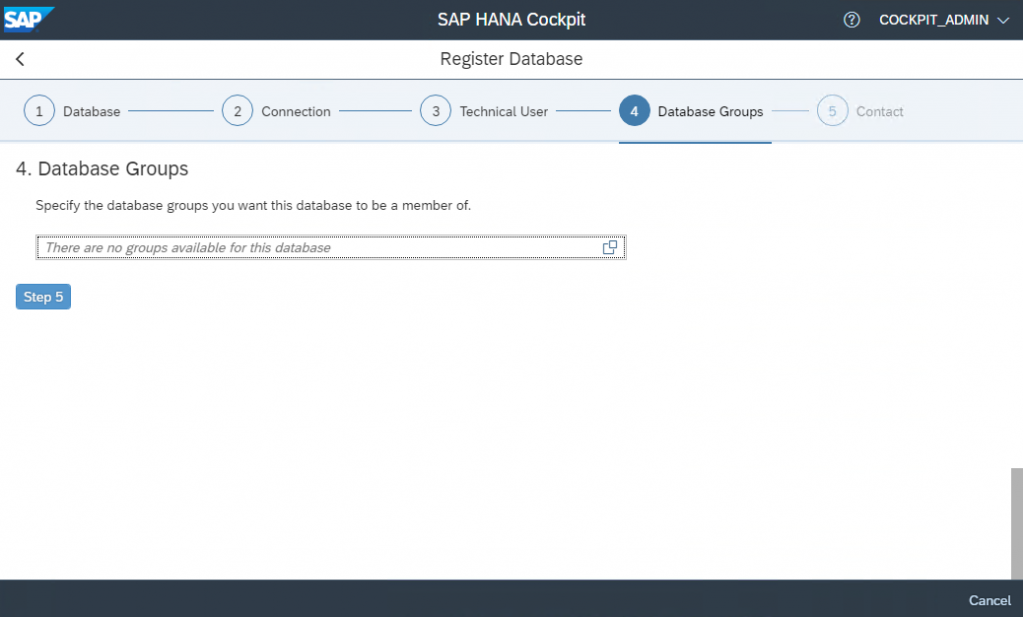
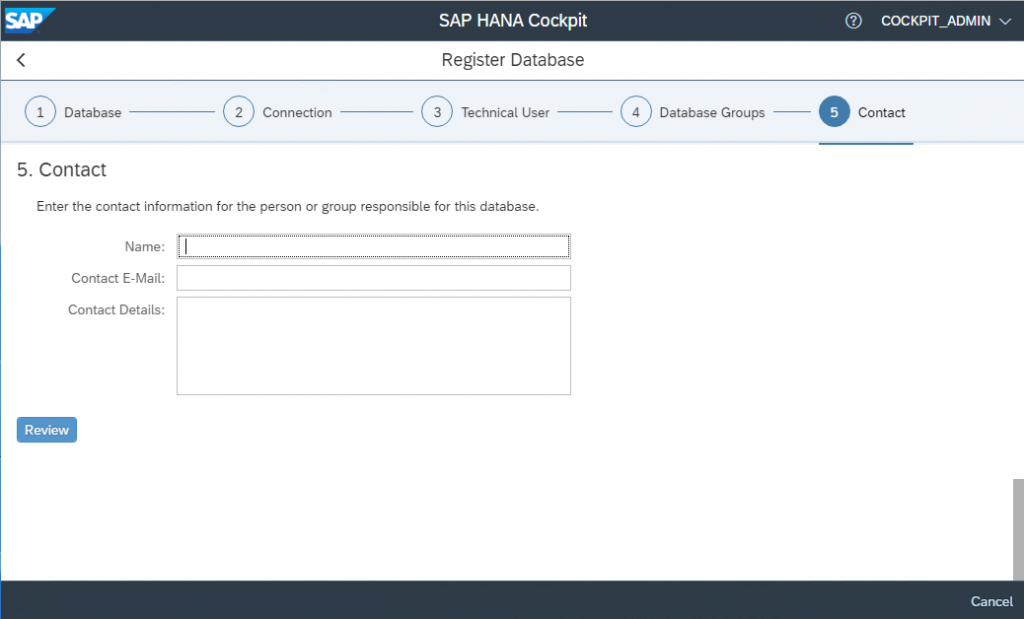
If you want to provide personal details then fill in the details and click on Review.
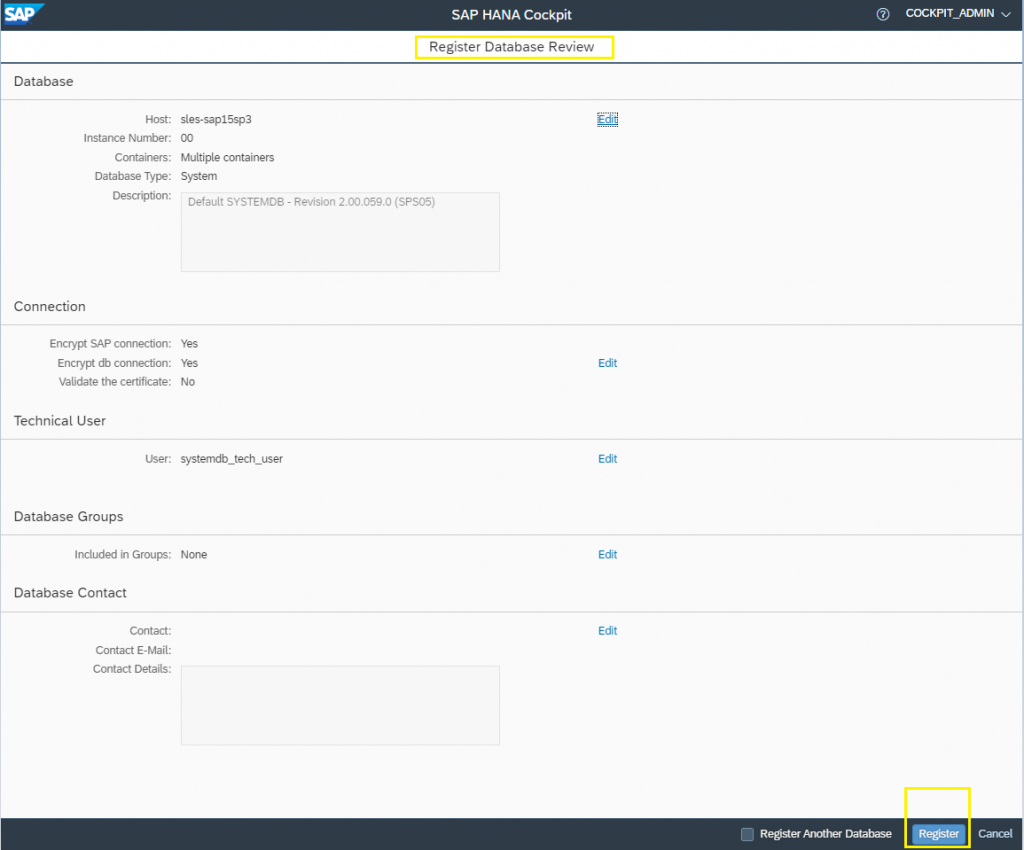
Review the provided details for Registering a Database and then click on Register.
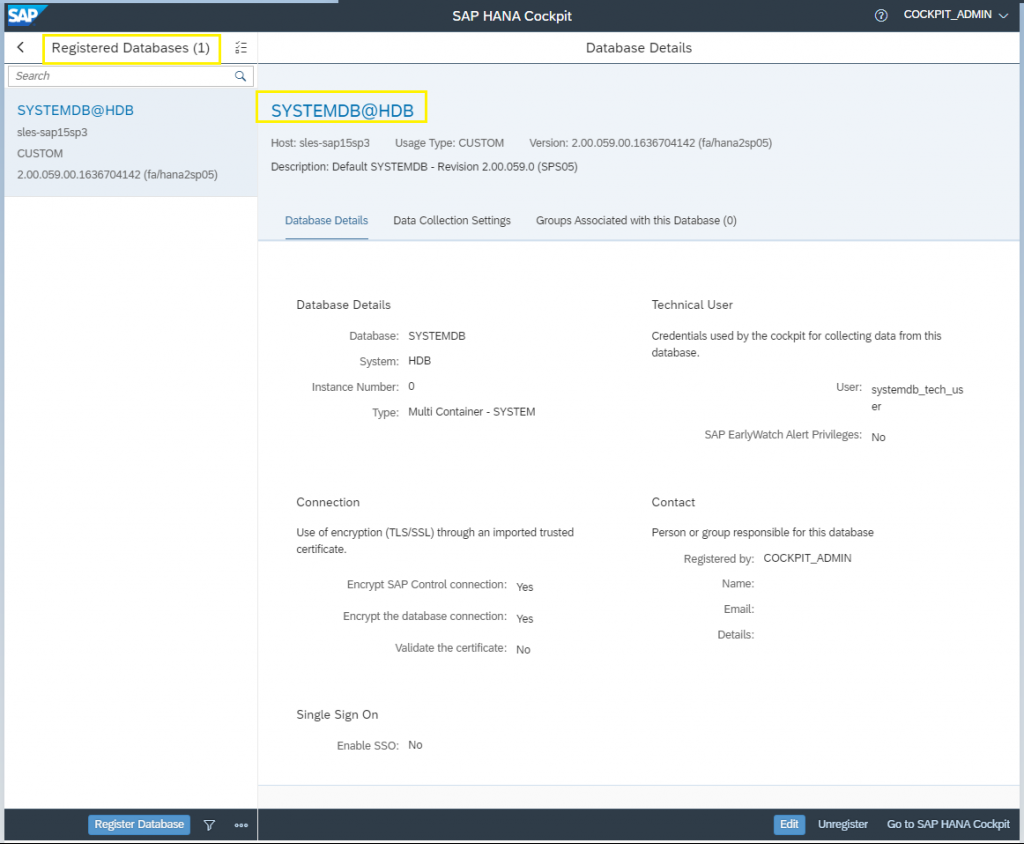
Database Registered Successfully. It will show the details of the DB System. When you click on Registered DB, it will launch Cockpit for the respective DB.
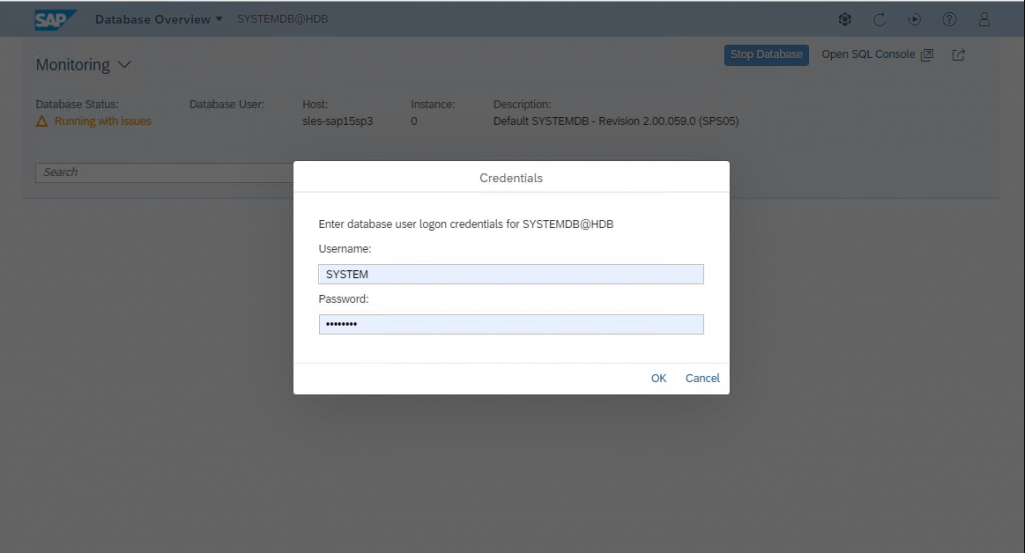
As you have clicked on the above Registered DB it will ask you to enter the Credentials. Enter the Credentials and click on OK.
Below is SAP HANA Cockpit for respective Database Management where we can explore DB and perform its Administration activities.